Transcribe
💡
A user-friendly and reliable transcription platform that can receive recordings from Inscripta Dictate.
- Dictation text that is processed from the dictation audio created with Inscripta Dictate can be further processed in the Inscripta Transcribe transcription platform.
- The transcription platform is a browser-based application that supports all modern browsers, such as Chrome, Edge, and Firefox.
- Sign in at medical.inscripta.io
Sign-in
Dictation job list
- Saved dictations are shown on the dictation job list (JOBS) in the default order: oldest or most urgent first.
- Dictations can be organized according to the column by clicking on the column. A second click on the column will organize the column in the opposite order (i.e. smaller to bigger vs. bigger to smaller).
- The STATUS column will show the status of the dictation.
- To edit a dictation, click on the PROCESS button on the dictation.
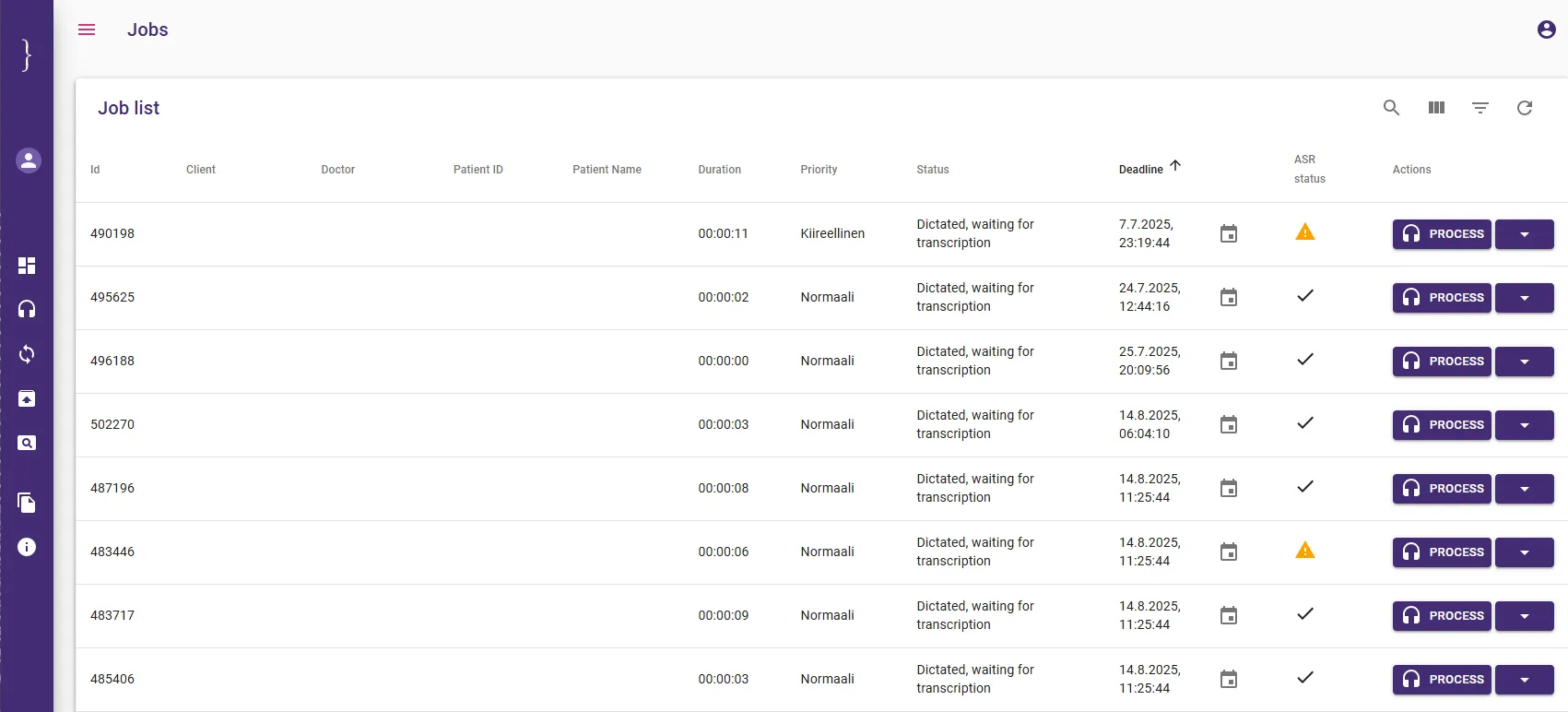
Job list
Editing view
- Text produced by the speech recognition is shown in the field KÄSITELTY TEKSTI.
- The dictation can be listened to by clicking on the PLAY button or with the keyboard shortcut Shift + SPACE.
- Clicking on the STOP button or with the keyboard shortcut Shift + SPACE, the dictation playback can be stopped.
- The editing tools and a list of keyboard shortcuts are shown on the right of the view. The volume and the speed of the dictation playback can be adjusted from the editing tools.
- If you want to move to a certain point in the dictation audio, you can use the PLAYBACK slider.
- By pressing CRTL and clicking on a certain point in the dictation text, the dictation audio will jump to the clicked point. By pressing CTRL + SPACE, the dictation audio will jump to the place where the mouse cursor is in the dictation text.
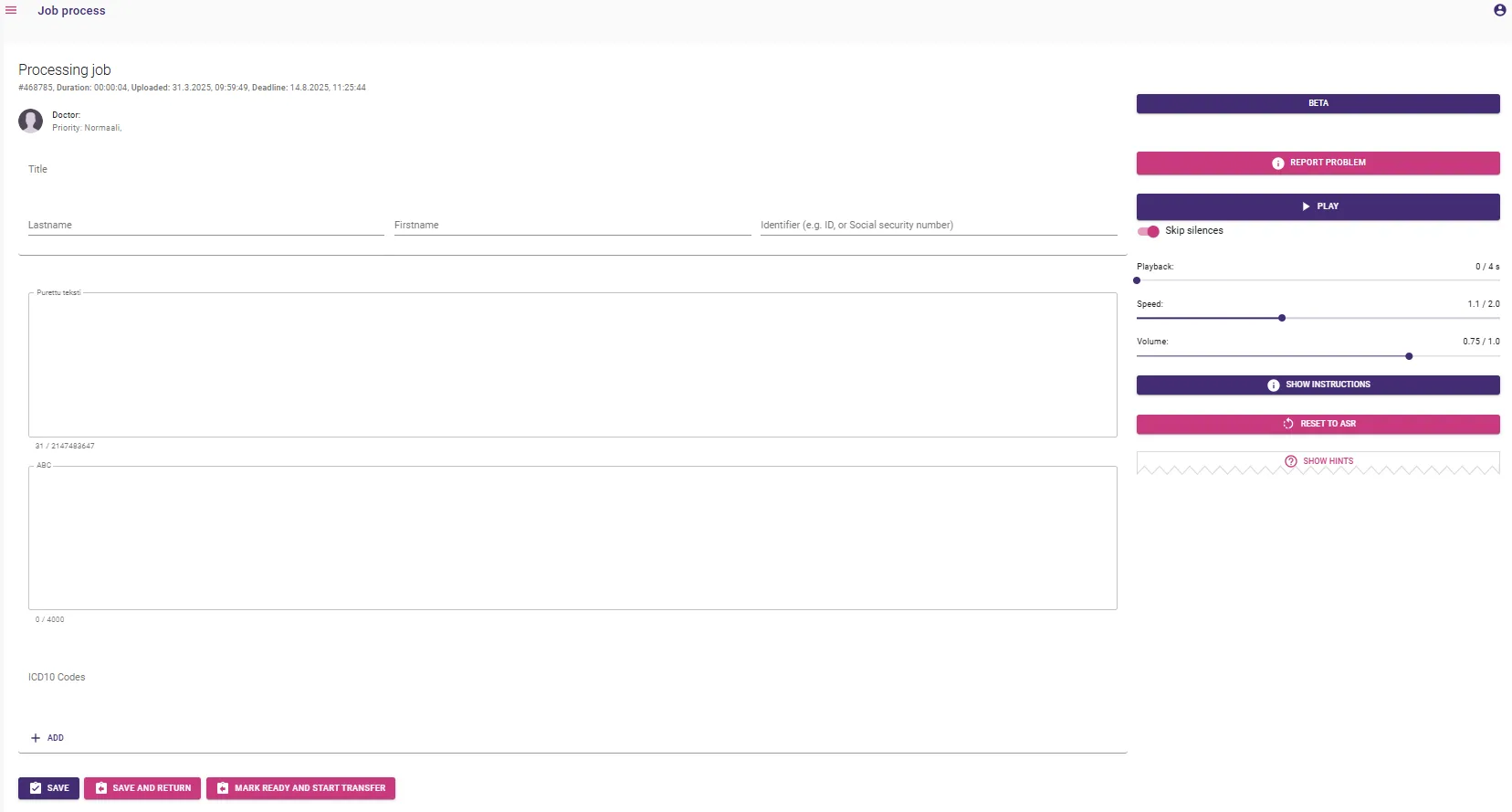
Editing view
- The keyboard shortcut SHIFT + SPACE will pause the dictation audio, and pressed again, the dictation audio will continue. If you want to go further backwards in the dictation audio, you can press SHIFT + SPACE more than once.
- When the dictation text is ready, it can be saved by clicking on the SAVE button. If the text is unfinished, it can be returned to the job list by clicking on the SAVE AND RETURN button. When the dictation is returned to the job list, it is available for edits to all transcribers with access rights.
Ready!
- Our speech recognition model is constantly improved. That is why it is important that all texts saved to the system are as flawless as possible and the vocabulary is as uniform/consistent as possible.
- Dictation audio and text is stored for 24 hours. During that time, the dictations can still be returned to the job list.